Deploying a project on the server may be done in two ways.
Ribbon File > Settings > Deployment
Check that the Publish Location host (default is localhost) and login/pwd is correct. The login must be a Platform administration user..
Ribbon Deployment > Publish Project
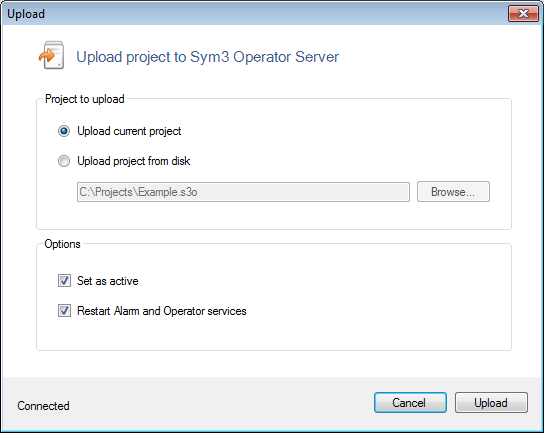
Select to upload either the current project or specify a different file stored on the drive.
Enter a relevant comment for this upload. This comment will be displayed to the user when this project is selected. This can be very useful to indicate any changes made or version updates etc.
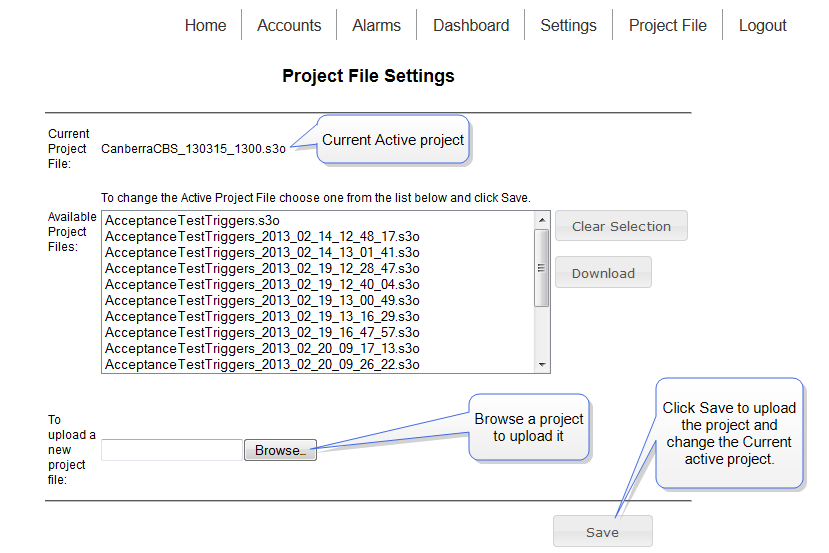
The Date and Author fields displayed in the Project File Settings screen are automatically entered.
Tick the boxes Set as active and Restart Alarm and Operator services to launch the project on the server.
The project may be uploaded but not made active and without restarting the services. This allows the user to pre-upload a new project and wait until a suitable time to launch the new project.
To upload a new project file, click Browse and select the project to upload. Enter a publish comment for the project and click Save.
To launch the server with the new project, select the project and click Save. Then select Dashboard, and restart all services.
The following is available in Sym3 version 5 or later.
When you select a project file from the list you can view the publish date, author (login user) and comment that were captured when the project was published.